
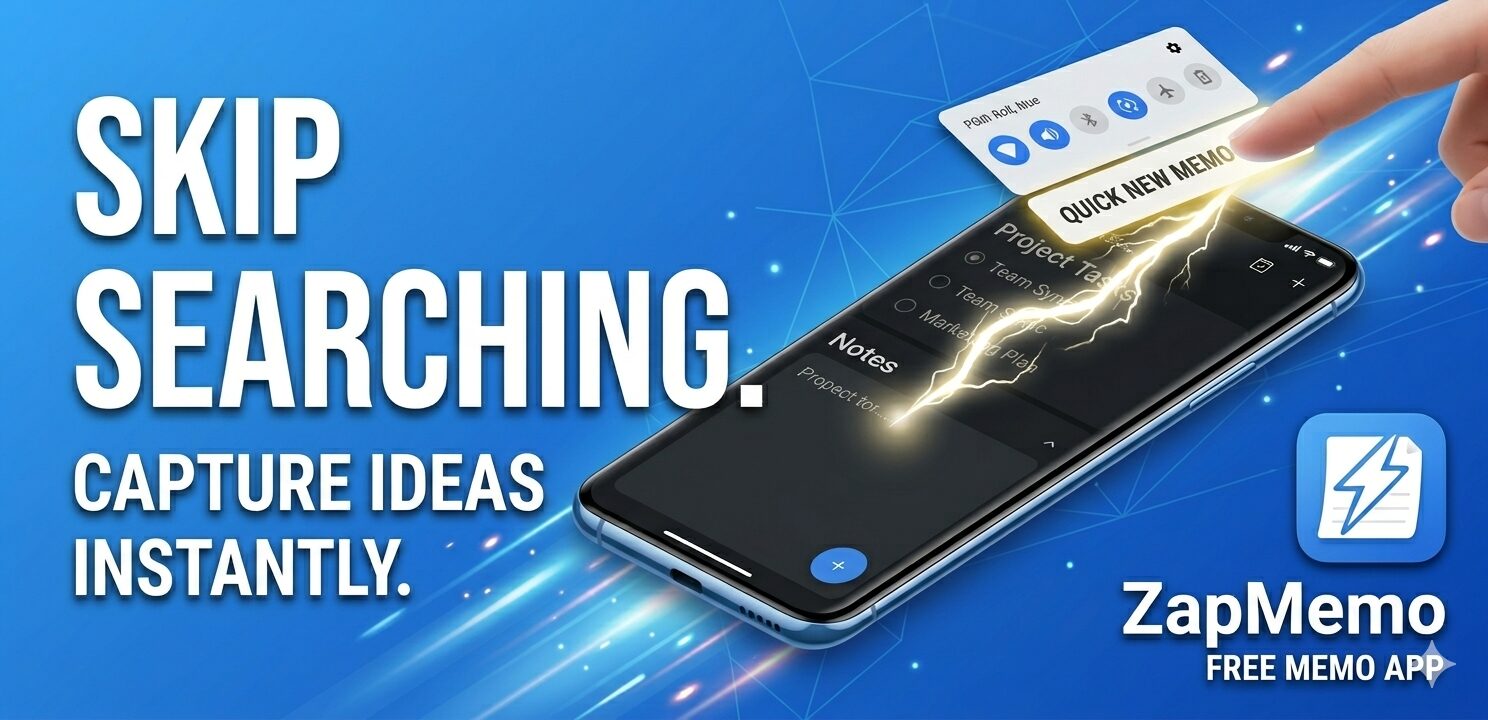
“Capture your thoughts in one second.”
Write instantly. No distractions. A stress-free note-taking experience.
Why “ZapMemo”?
Have you ever thought, “Oh, I need to jot this down,” only to lose what you wanted to write because you had to search for the app, wait for it to load, or get interrupted by ads?
ZapMemo is an ultra-lightweight note-taking app designed exclusively for Android, created to eliminate those small but frustrating moments of friction.
Three Core Values
① Blazing Speed and Instant Access
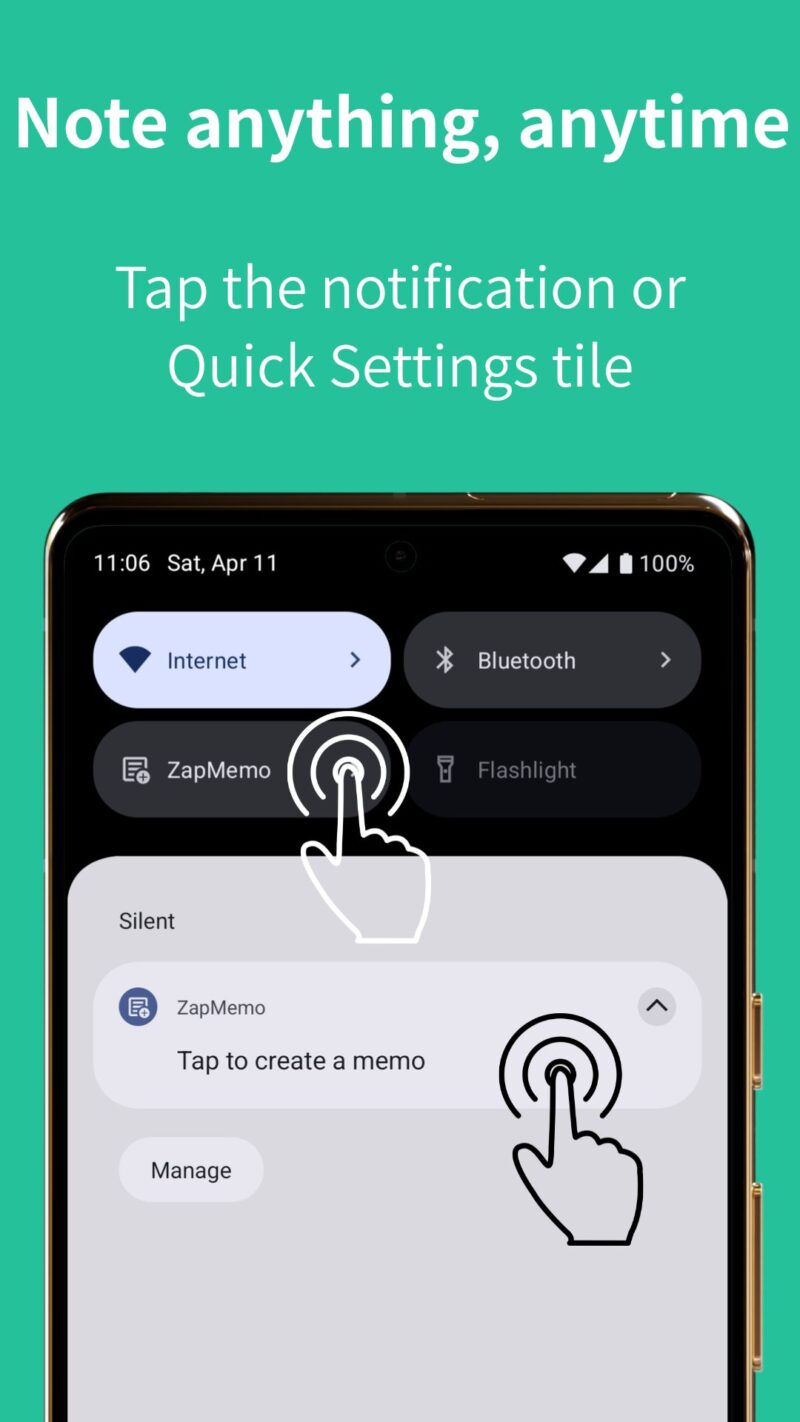
- Instant launch from notifications: Even while using other apps, open the input screen with a single tap from the notification bar.
- Instant launch from Quick Settings: Add this app’s Quick Settings tile and open a new memo instantly from any screen with a single tap.
- Fast response: Thanks to its lightweight design with streamlined features, it runs smoothly even on older devices and budget smartphones.
- Shortcuts: In addition to normal launch, you can start taking notes at the speed of thought via app icon long-press or from notifications.
② A “user-first, unobtrusive design”
- No intrusive full-screen ads: No video ads will suddenly appear the moment you try to write a note.
- Ad customization: Not only can you choose how ads are displayed, but you can also watch rewarded videos to completely remove ads for a certain period of time.
- Completely free: All features are available from the start at no cost.
③ An added value of “peace of mind”
- Fully offline: Notes are stored only on your device. No cloud upload or account registration is required.
- Privacy-focused: Your private notes are never exposed or shared externally.
Key Features
| カテゴリ | 機能詳細 |
|---|---|
| Input | Launch from the notification bar / Launch from the Quick Settings tile / Share text (save from other apps) |
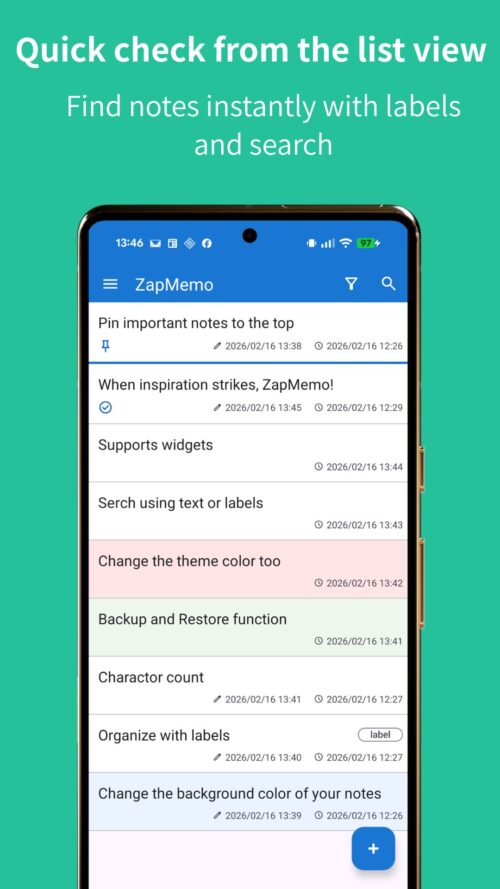
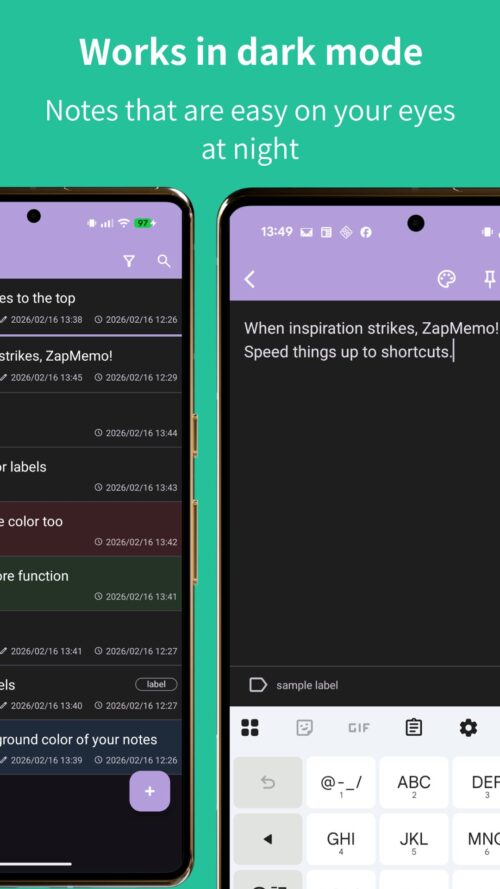
| Management | Label management / Label filtering / Pinning / Check flags |
| Display | Create widgets / Character count / Dark mode / Text search |
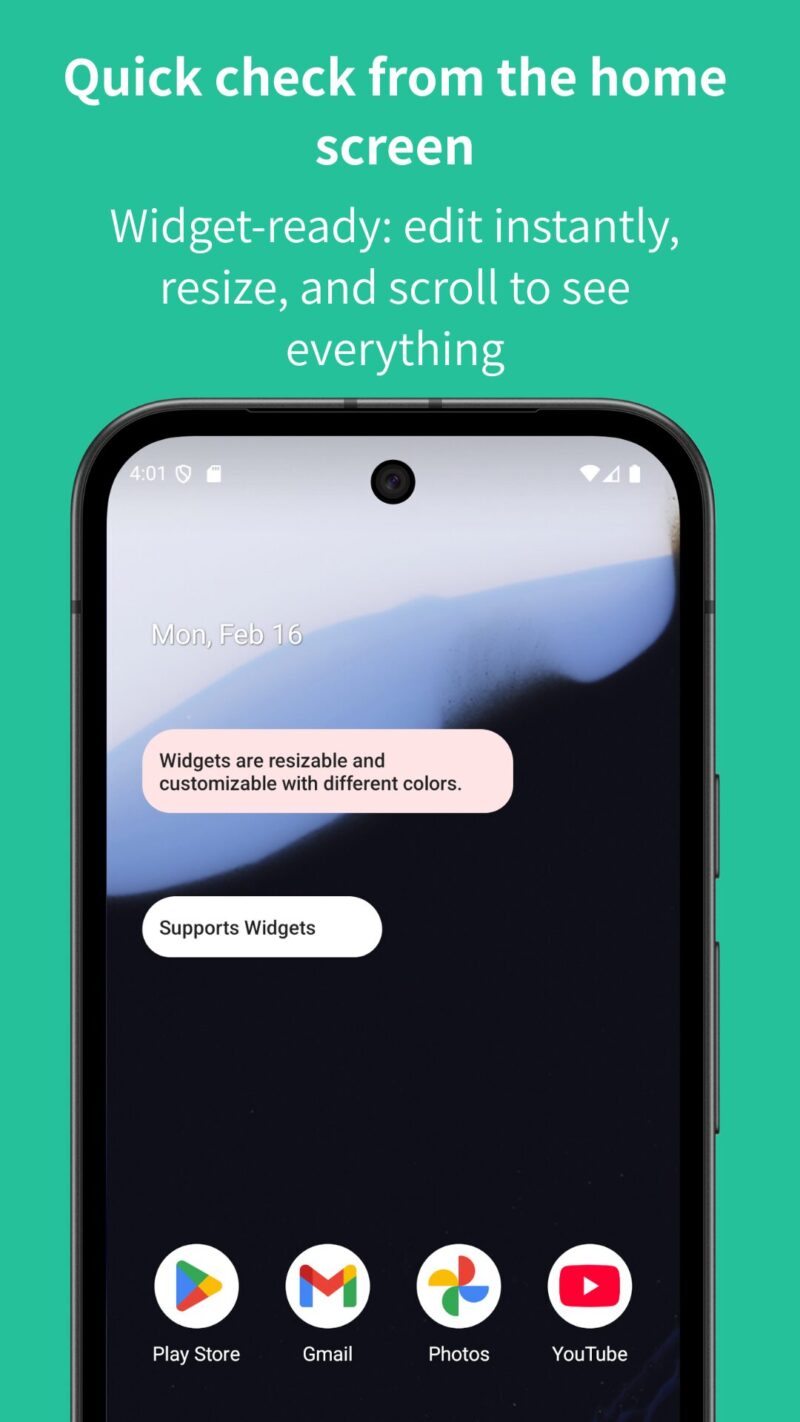
| Widgets | Multiple widgets supported / Resizable / Scrollable |
| Data | Local backup and restore functionality |
5. Ideal for the following scenarios
- To-do & shopping lists: Organize tasks with labels and check flags.
- Idea notebook: Capture phrases and ideas you come up with while walking or reading.
- Temporary copy & paste storage: Quickly save information you find in your browser using the share feature.
Download Link
※ For Android users / Completely free
Frequently Asked Questions (FAQ)
Q. What’s the biggest difference from other note apps?
A. It’s the speed of getting started. To eliminate the need to search for and open the app, you can launch a new note screen with a single tap from the notification bar or Quick Settings tile. By removing unnecessary ads and cloud syncing, the app is optimized for fast startup and lightweight performance.
Q. Aren’t ads distracting?
A. We do not use any automatically displayed full-screen ads that interrupt your writing. You can also choose how ads are shown, and by watching a short rewarded video, you can completely hide ads for a certain period—so you can use the app without stress
Q. Can I use it offline?
A. Yes, it works completely offline. All notes are stored only on your device and are never sent to external servers (the cloud). You can use it with confidence even in places without a signal, like subways.
Q. Can I back up my data or transfer it to a new device?
A. Yes, you can. Using the in-app backup feature, you can create a backup file in your device’s local storage. By transferring that file to a new device and restoring it, you can carry over your data.
Q. Does it cost anything? Are there any in-app purchases?
A. All features are available for free. There are no paid upgrades or locked features, so you can enjoy the full functionality of ZapMemo with peace of min
Q. Can I resize widgets?
A. Yes. You can freely resize widgets by long-pressing them on the Android home screen. If there’s a lot of content, you can also scroll within the widget to view it.
Q. How do I use the Quick Settings panel?
A. Swipe down from the top of the screen twice to open the Quick Settings panel, then tap the edit (pencil) icon to add this app’s tile. Once added, you can tap the tile from any screen to instantly open a new memo. This eliminates the need to find and launch the app, so you can capture ideas the moment they come to mind.
Note: The display and steps may vary depending on your device.
Q. What is auto-save?
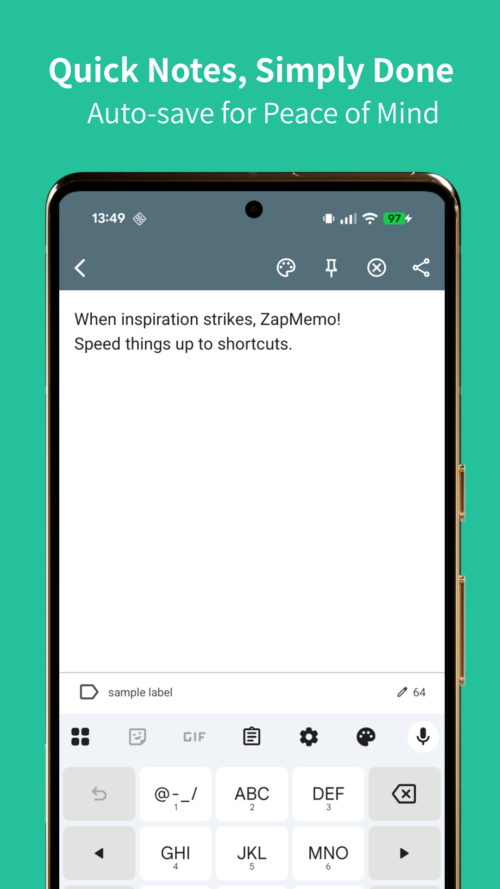
A. The content you enter in the note editing screen is automatically saved when you close the screen (e.g., by pressing Back or exiting). There is no need to press a save button.
In addition, even if your device goes to sleep or you switch to another app while editing, your input is preserved, so you won’t lose any unfinished notes.